Skip the repetitive typing
Set a line once and let the page fill itself instead of copying it out over and over.
Handwriting Repeater is an online writing page that behaves like a pen. Type a line or draw one, and it is written out for you stroke by stroke on lined paper. Repeat it down the sheet, trace over a faint guide, then save the result as an image or PDF. No download and no account needed.
The canvas works for cursive, print letters, numbers, calligraphy and signatures. Everything happens in your browser, so you can open the page, write, export and close it again in a minute.
Think of it as a sheet of paper that writes back. Enter a sentence and the pen draws it live, with the speed, nib and ink colour you chose. Because the pen is animated, you can see where each letter begins, which way it travels and where it joins the next one, which is something a printed worksheet cannot show.
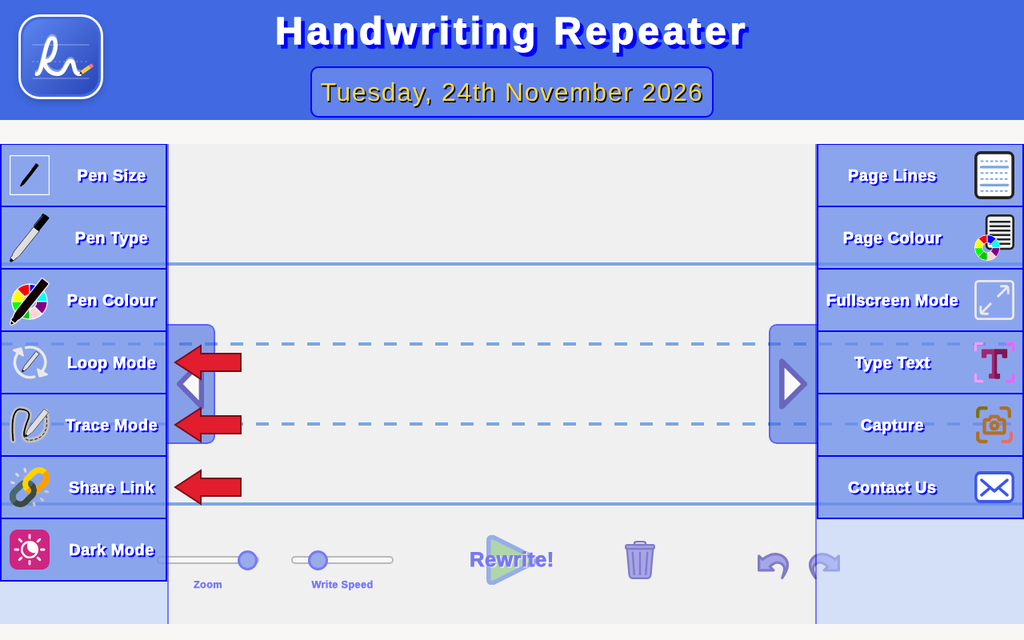
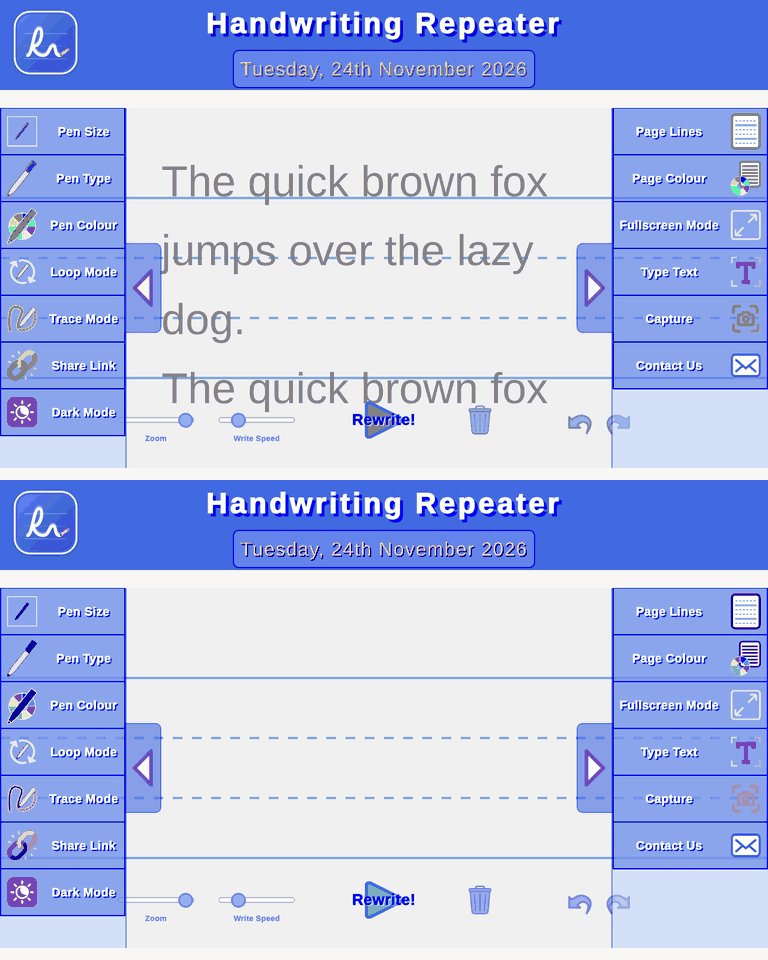
Two modes cover most uses. Loop Mode keeps rewriting your line until the page is full, which suits repeated-line exercises. Trace Mode lays a pale copy of the text on the page so a learner can go over it by hand, on a touch screen or with a mouse.
In a classroom, a teacher can type a word, project the page, and talk through the strokes as they appear. Pupils can then open the same page on their own devices with a Share Link and try it themselves. At home, the same tools work for a quick daily warm-up or for an adult who wants to neaten their writing.
Finished pages can be saved as a PNG, exported as a PDF or printed, so a good result can leave the screen and go onto paper.
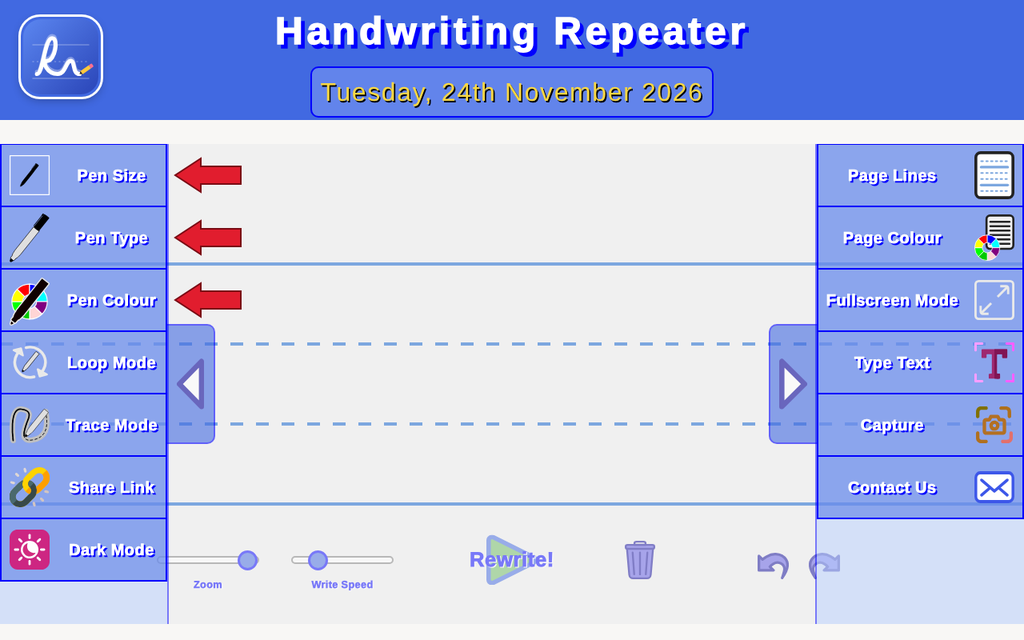
Open the menu on the left. Pen Size gives you small, medium and large nibs, Pen Type switches between pen, pencil, quill or no visible pen, and Pen Colour offers eleven inks. Beginners usually find a large dark pen easiest to follow; for joined-up writing a medium blue or green looks closer to a school pen.
Still on the left, decide how the page should behave:
Share Link copies a web address that reopens your page and settings, handy for sending a task to a class or a child's tablet.
The right-hand menu controls the paper. Page Lines has ten styles, from dotted lines and tramlines to squares and plain blank. Page Colour offers white, peach, yellow, blue and blue-grey; some readers prefer a softer tint to bright white.
Fullscreen Mode removes the surrounding page so the canvas fills the screen.
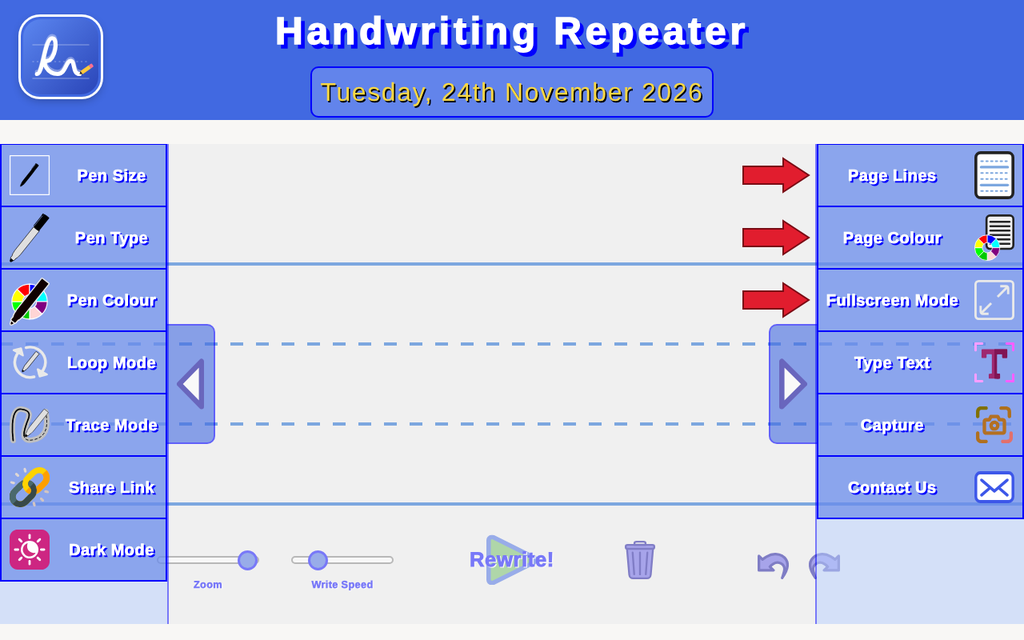
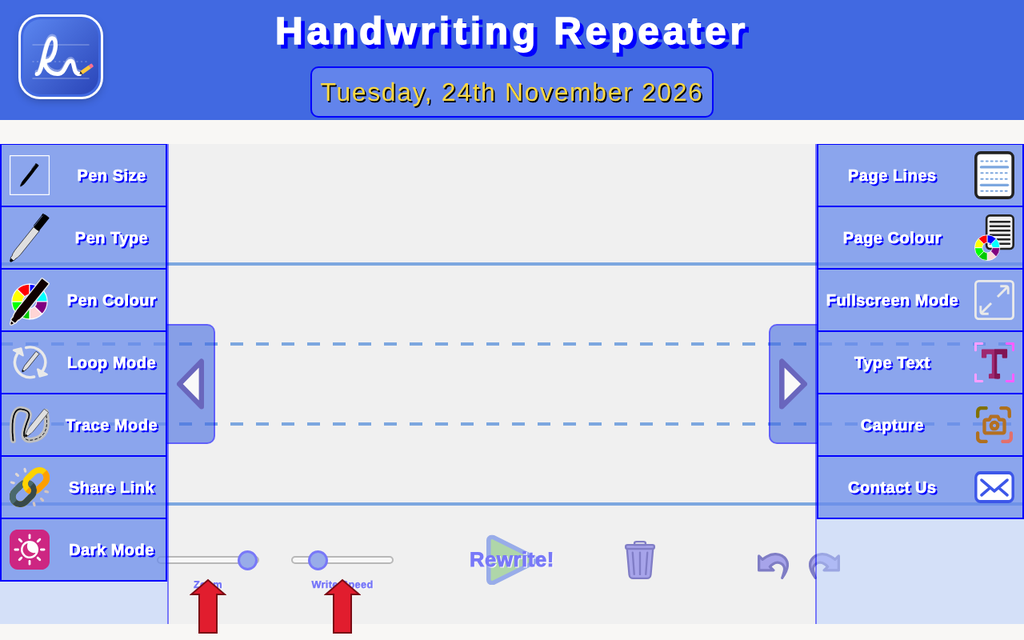
Two sliders sit along the bottom edge. Zoom enlarges the page so you can inspect letter shapes, or shrinks it to show the whole sheet. Write Speed sets how fast the pen moves: go slow to study stroke order, go fast to fill a page quickly.
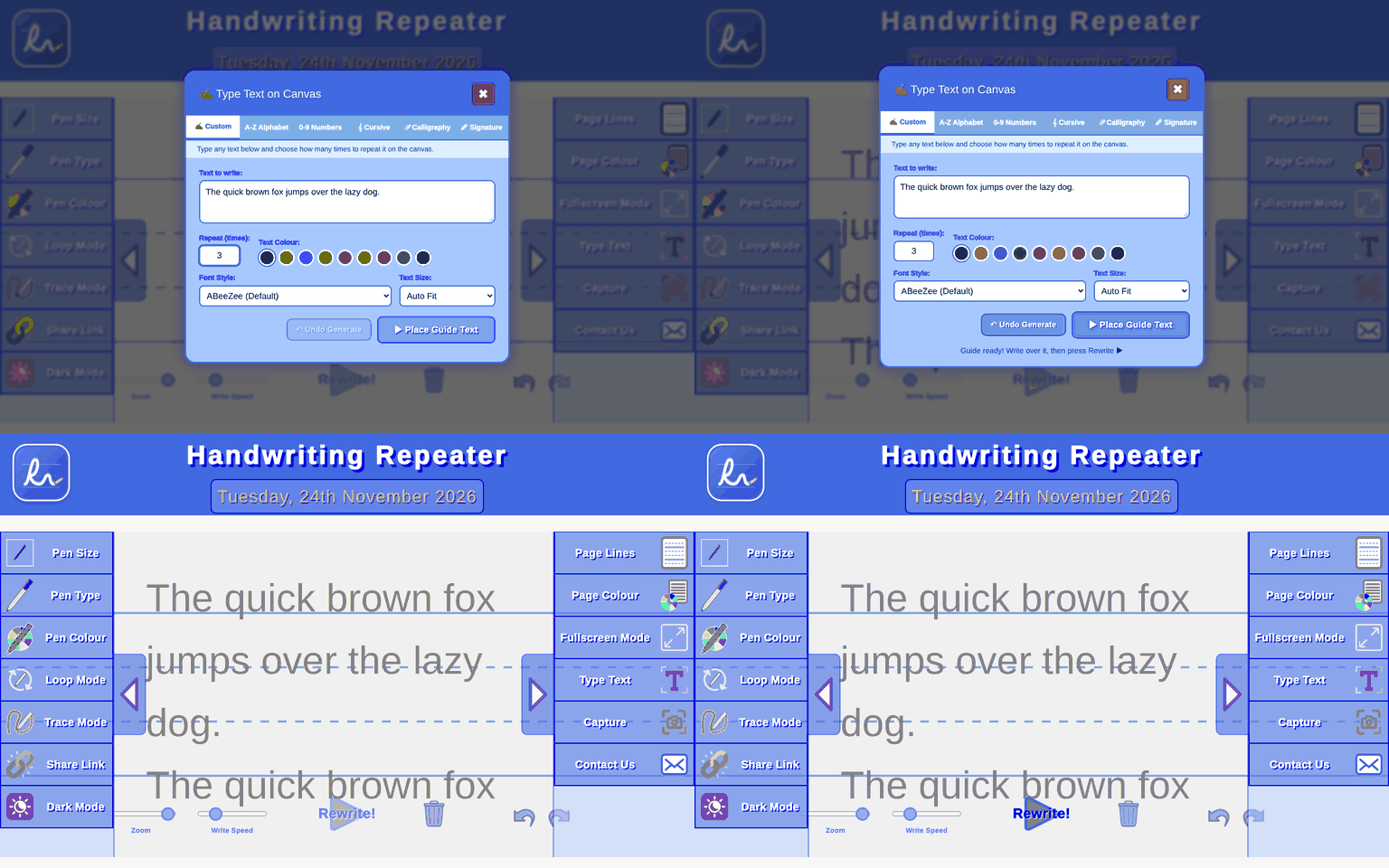
Choose Type Text on the right, enter a word or sentence, pick how many repeats you want, a font and a colour, then press Place Guide Text. Ready-made sets cover the alphabet, numbers, cursive joins, calligraphy and signatures. Finish with the big Rewrite! button and watch the pen go.
Open Capture on the right to take a Screen shot (PNG), Save as PDF, or Print Screen. Made a slip? Undo and Redo sit at the bottom right, and the bin icon wipes the page clean.
Set a line once and let the page fill itself instead of copying it out over and over.
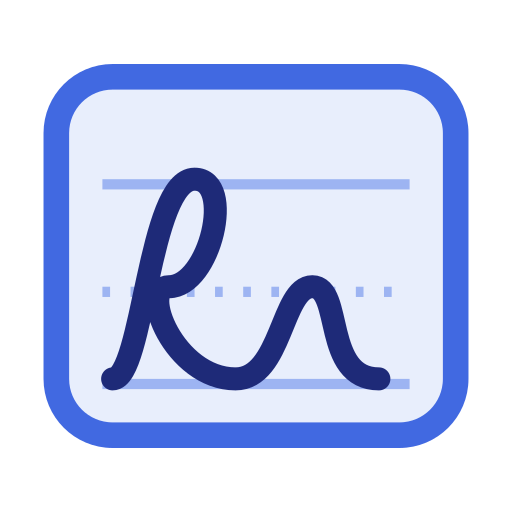
Watching each stroke being laid down makes direction, joins and spacing easy to study.
Choose the ruling, colour and text, then print a sheet that matches the lesson.

Slow the pen down to learn a shape, or speed it up when you only need the page.
Laptop, tablet or phone, with nothing to install.
It animates text as if a pen were writing it on a ruled page. You type or draw a line, the tool replays it stroke by stroke, and you can repeat it down the page, trace over it, or export the result as an image or PDF.
No. Everything runs in the browser tab you already have open, so there is nothing to install and nothing to sign up for.
Yes, every feature on the site is free to use right now.
No. Writing and drawing are handled locally by your browser. The only thing stored is your chosen settings (pen, colours, page style), kept on your own device so they are there next time. The Share Link feature packs your page into a web address that you copy yourself.
In the Type Text panel you can set anywhere from 1 to 200 repeats, and the canvas scrolls to make room.
Loop Mode keeps rewriting your line across the page until you stop it. Trace Mode puts a faint copy of the text on the page so you can follow the letter shapes with a finger, stylus or mouse.
Three nib sizes, four pen styles (pen, pencil, quill, or no visible pen) and eleven ink colours. Page colour and ten ruled or gridded backgrounds can be changed at any time.
Yes, in current versions of Chrome, Safari, Edge and Firefox. On small screens switch on Fullscreen Mode from the right-hand menu to get more room. A tablet with a stylus is the most comfortable way to use Trace Mode.
Open the Capture menu on the right. You can save a PNG screenshot, save a PDF, or send the page straight to your printer.
Many do: put a word or sentence on the board, show the stroke order live, then send pupils a Share Link that opens the same page and settings on their own device.
There are no accounts, no chat and no user-generated feeds, so there is nothing for a child to run into beyond the writing canvas. As with any website, younger pupils are best supported by an adult.
Refresh the page first. If the problem persists, use the Contact Us button in the right-hand menu and tell us your device and browser.